Download AntiMicroX – Free Gamepad Mapper
Map any gamepad or joystick to keyboard keys, mouse controls, and macros. Open-source controller mapping for Windows and Linux with profile switching and auto-detection.
What Is AntiMicroX?
A free, open-source gamepad-to-keyboard mapper that gives any controller full PC control
AntiMicroX (formerly AntiMicro) is a free, open-source graphical program that maps gamepad buttons, triggers, bumpers, and analog sticks to keyboard keys, mouse movements, mouse buttons, and custom macros. The AntiMicroX download is available for both Windows and Linux, and it works with virtually any USB or Bluetooth controller — including Xbox, PlayStation, Nintendo, and generic third-party gamepads.
If you have ever tried to play a PC game that only accepts keyboard input, or wanted to browse the desktop from your couch using a controller, AntiMicroX solves that problem. Instead of relying on per-game controller support, AntiMicroX translates your controller signals into keyboard and mouse events at the operating-system level, so every application on your PC responds to your gamepad inputs as though you were typing on a keyboard or moving a mouse.
Who Develops AntiMicroX?
The project started around 2011 when Travis Nickles (known as Ryochan7 on GitHub) created the original AntiMicro as a free alternative to paid tools like JoyToKey and Xpadder. After the original repo went inactive in 2016, developer Julia Goda forked the code in 2018 and renamed it AntiMicroX beginning with version 2.25. Today the project is maintained by the AntiMicroX organization on GitHub, with 96 contributors and over 3,500 GitHub stars. The current release, version 3.5.1, shipped on January 27, 2025.
Who Is It For?
AntiMicroX serves a surprisingly wide audience. Retro gamers use it to play older titles that shipped without controller support. Emulator users pair it with RetroArch, Dolphin, or PCSX2 for customized control schemes. Accessibility users rely on it when a keyboard and mouse are physically difficult to operate. Linux gamers use it as a free, native replacement for Windows-only commercial tools. And productivity users create profiles that map controller buttons to media keys, window management shortcuts, or presentation controls.
Controller compatibility: AntiMicroX supports Xbox 360, Xbox One, Xbox Series X/S, PlayStation DualShock 3/4, DualSense (PS5), Nintendo Switch Pro, Wii Remote, generic USB gamepads, flight sticks, and racing wheels through the SDL2 input library.
How Does the Mapping Work?
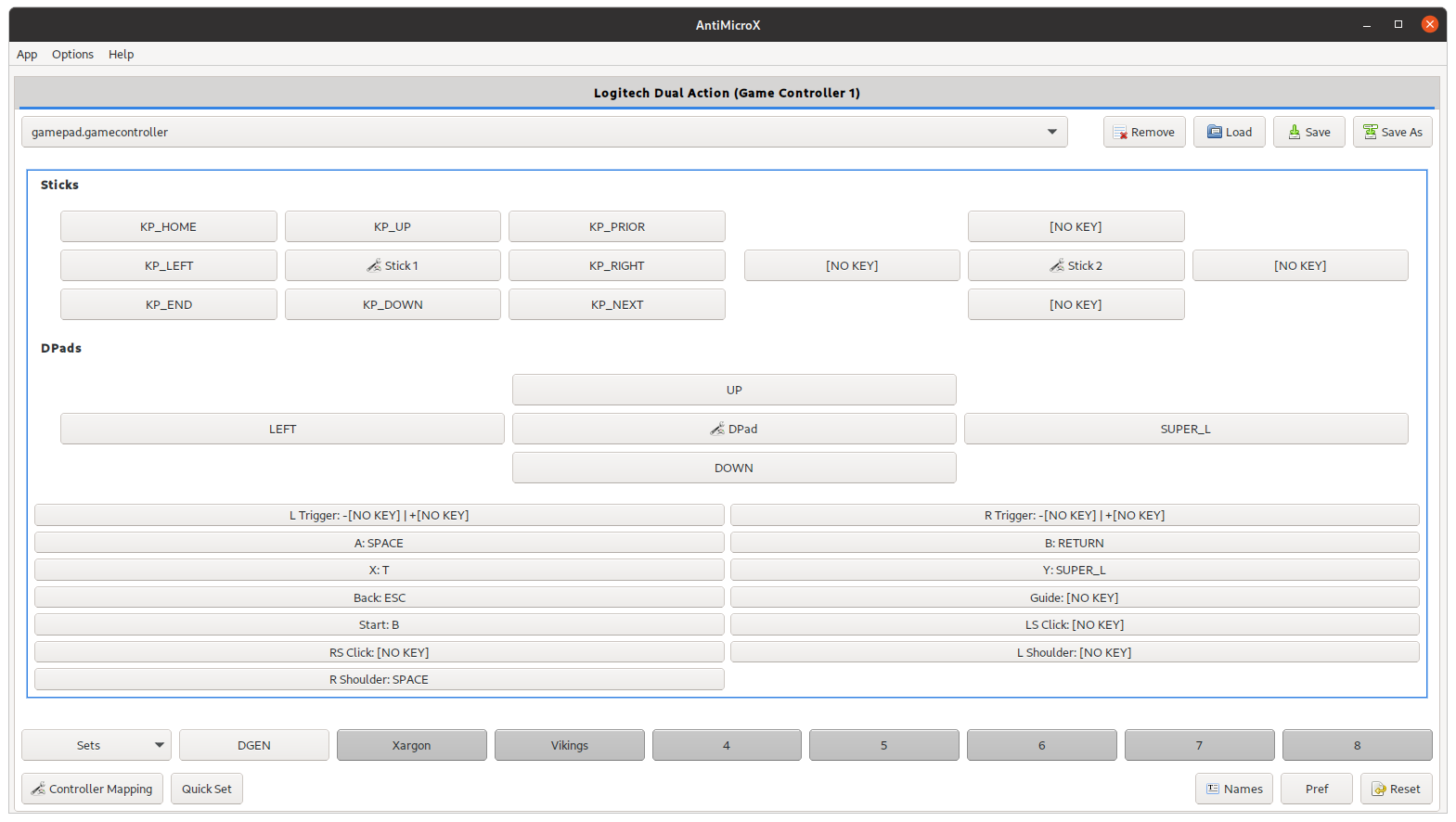
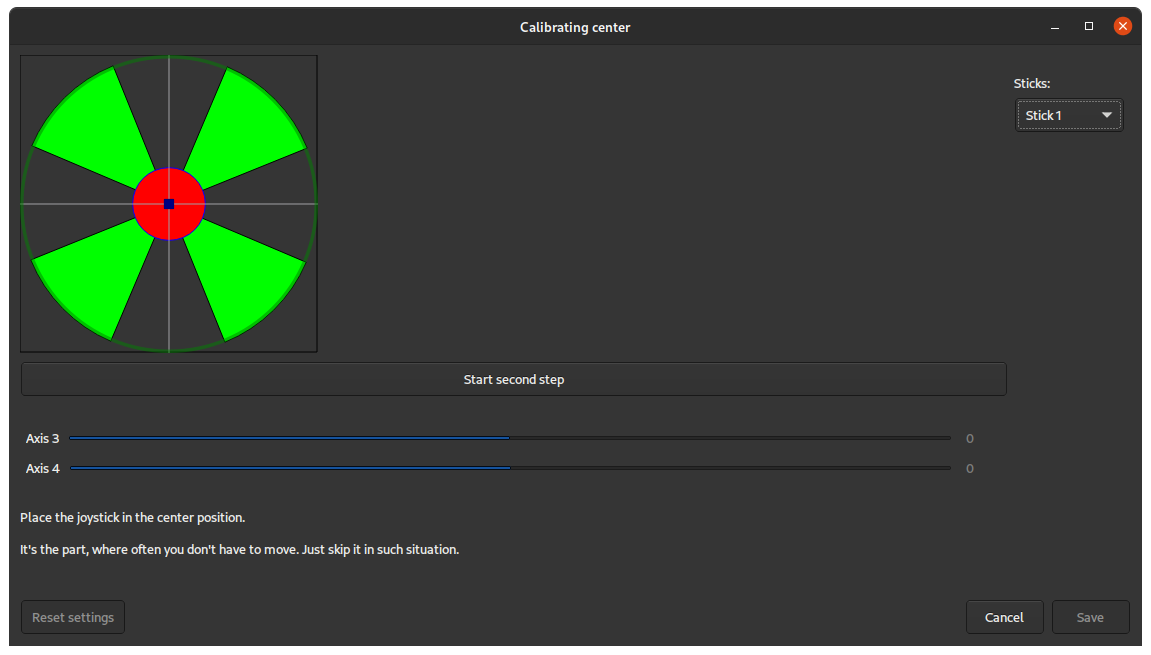
When you launch AntiMicroX, the program detects every connected controller and displays a visual button layout on screen. To create a mapping, click on any button in the interface — a dialog lets you pick the keyboard key, mouse action, or macro you want that button to trigger. You can adjust analog stick sensitivity, set dead zones, configure acceleration curves, and define turbo-repeat intervals for rapid-fire inputs.
All your mappings are saved as profiles that can be loaded manually or activated automatically. The auto-profile feature monitors which application window has focus and loads the correct profile when you switch between games or programs. AntiMicroX runs as a lightweight background process in your system tray, using minimal CPU and RAM while processing controller inputs in real time.
Explore the full feature list, system requirements, and installation guide below.
Key Features of AntiMicroX
Everything you need to map your controller to keyboard, mouse, macros, and scripts
Button-to-Key Mapping
Assign any gamepad button to any keyboard key through a visual controller layout. Click a button, pick your key, and the mapping is live. Supports face buttons, bumpers, triggers, D-pad directions, and thumbstick clicks with configurable turbo and toggle modes.
Mouse Emulation
Map analog sticks to mouse cursor movement with full control over sensitivity, acceleration curves, and dead zone thresholds. Bind mouse buttons (left, right, middle, scroll) to any controller input for complete mouse replacement — ideal for FPS games or desktop navigation.
Macros and Scripts
Build multi-step macros that chain keyboard presses, mouse clicks, and timed delays into a single button press. Execute external scripts, batch files, or launch applications directly from any controller input for advanced automation workflows.
Multiple Mapping Sets
Create multiple mapping sets within a single profile and switch between them mid-session using a designated button combination. Useful when one game needs different control layouts for combat, menus, vehicles, or other gameplay modes.
Auto-Profile Switching
AntiMicroX monitors the active application window and loads the correct controller profile automatically. Launch a game and the right mapping activates without manual switching. Full support on X.org display servers; limited functionality on Wayland.
Wide Controller Support
Works with Xbox 360/One/Series, PlayStation DualShock 3/4/5, DualSense, Nintendo Switch Pro, Wii Remote, generic USB gamepads, flight sticks, racing wheels, and any HID-compliant device through the SDL2 input library.
SDL2 Controller Configuration
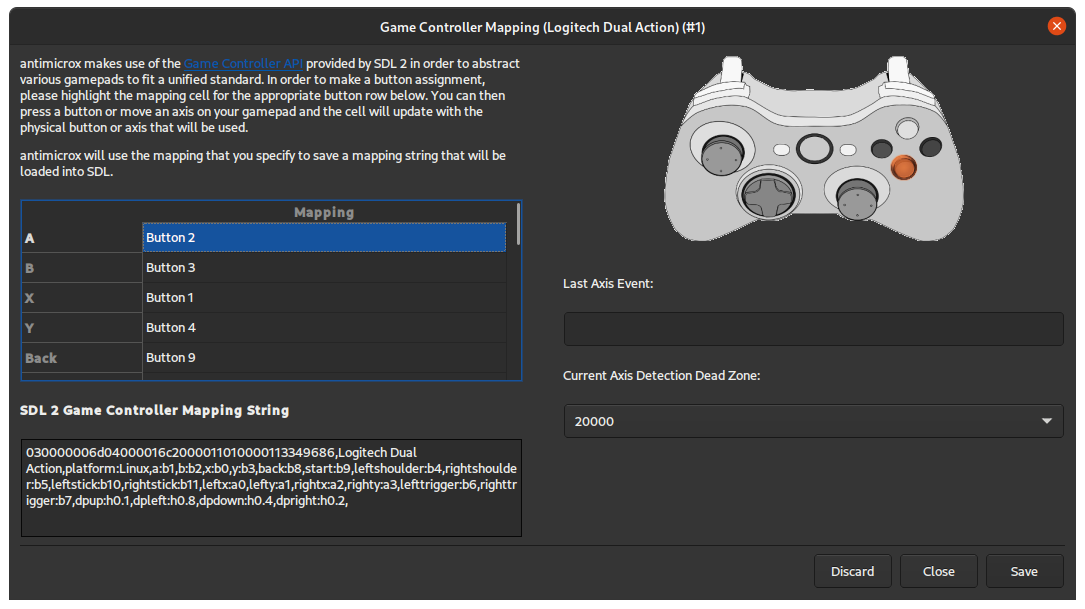
Generate SDL2 GameController mappings for non-standard or off-brand gamepads. This built-in calibration tool makes unusual controllers behave like a standard Xbox 360 or DualShock layout, fixing mismapped buttons and drift issues in games.
Cross-Platform (Windows & Linux)
Runs natively on Windows 7 through 11 and most Linux distributions (Ubuntu, Fedora, Arch, Debian, openSUSE). Profile files use the same format on both platforms, so you can share your controller configurations between machines without any conversion.
System Tray Background Mode
Minimize AntiMicroX to the system tray where it runs silently in the background, consuming minimal system resources. The tray icon provides quick access to profiles, controller status, and mapping-set switching without opening the full application window.
Check the system requirements below to make sure your PC is compatible.
System Requirements
AntiMicroX is lightweight and runs on almost any Windows or Linux hardware
Linux (Ubuntu, Fedora, Arch, Debian)
2 GB free recommended
SDL2-compatible
Fully offline application
Linux users need SDL2, Qt5 or Qt6 libraries, and may need to add themselves to the input group for controller access. No dedicated GPU is required — AntiMicroX does not perform any 3D rendering.
Download AntiMicroX 3.5.1
Get the latest version for Windows or Linux — free, open source, no signup required
Screenshots
See the AntiMicroX interface, mapping screens, and configuration panels
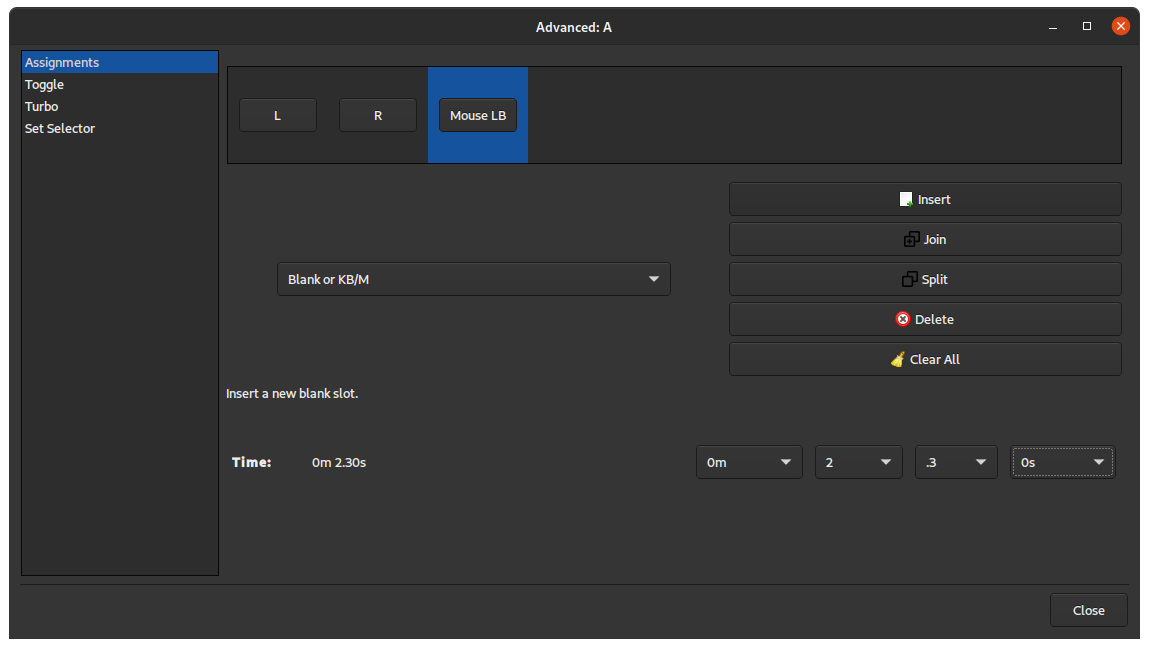
How to Install and Set Up AntiMicroX
Step-by-step guide from downloading to creating your first controller mapping
Download the Installer
Head to our download section and grab the version that matches your system. Windows users should pick the .exe installer (13.4 MB) for a standard installation, or the portable .zip (16.5 MB) if you want to run AntiMicroX from a USB drive without installing. Linux users can choose between the universal AppImage, a .deb package for Ubuntu/Debian, or the Flatpak from Flathub.
Tip: The portable version is ideal if you use multiple PCs. Drop it on a flash drive and carry your controller profiles with you — no installation needed.
Install on Windows
Run the downloaded .exe file. The installer wizard will ask you to accept the GPL v3 license agreement and choose a destination folder. The default location (Program Files) works fine for most setups. Click through the prompts and the installation completes in a few seconds.
If you downloaded the portable .zip instead, extract the archive to any folder and run antimicrox.exe directly — no installation wizard is involved.
Note: Some antivirus programs may flag the installer because it hooks into input devices at the OS level. This is a known false positive. AntiMicroX is open-source software reviewed by 96 contributors on GitHub. If your AV blocks it, whitelist the file or temporarily disable real-time scanning during installation.
Install on Linux
The simplest method is Flatpak. Open a terminal and run:
flatpak install flathub io.github.antimicrox.antimicrox
For Ubuntu or Debian, download the .deb file from our download section and install it with:
sudo dpkg -i antimicrox-3.5.1-ubuntu-*.deb
Arch Linux users can install from the AUR using yay -S antimicrox or trizen -S antimicrox. For the AppImage, make it executable with chmod +x AntiMicroX-x86_64.AppImage and then run it directly.
Tip: If your controller is not detected on Linux, you likely need to add yourself to the input group: sudo usermod -a -G input $USER. Log out and back in for the change to take effect.
Connect Your Controller
Plug in your gamepad via USB or pair it over Bluetooth. AntiMicroX uses the SDL2 library for input detection, so most controllers are recognized automatically with no extra drivers. Xbox, PlayStation, and Nintendo controllers all work out of the box. If you have an unusual or off-brand gamepad, the built-in SDL2 configuration tool can help you map its buttons to a standard layout.
Create Your First Mapping
Launch AntiMicroX. The program displays a visual representation of your connected controller with every button, trigger, and stick labeled. Click on any button in the interface — a dialog pops up where you assign a keyboard key, mouse button, mouse movement direction, or a macro sequence. Repeat for each input you want to map.
Once you are satisfied with the layout, save it as a profile using File > Save As. Give it a descriptive name like “FPS-WASD” or “Desktop-Navigation” so you can find it quickly later.
Set Up Auto-Profiles (Optional)
If you use different mappings for different games, navigate to Options > Settings > Auto Profile and add entries that link specific application windows to specific profiles. When you launch that game, AntiMicroX detects the window title and loads the matching profile automatically. This works well on X.org but has limited support on Wayland-based desktops.
Tip: Minimize AntiMicroX to the system tray so it runs quietly in the background. Right-click the tray icon for quick profile switching without opening the full window.
Have a question? Check the FAQ section below for answers to common issues.
Frequently Asked Questions
Detailed answers to common questions about downloading, installing, and using AntiMicroX
Is AntiMicroX free to download and use?
Yes, AntiMicroX is 100% free. The program is released under the GNU General Public License v3 (GPL v3), which means you can download, install, use, and even modify the source code without paying anything.
There are no paid tiers, no premium features locked behind a paywall, no trial periods, and no subscription fees. Every feature — including macros, auto-profiles, SDL2 configuration, and multi-set mapping — is available to all users at no cost.
The source code is publicly available on the AntiMicroX GitHub repository, where 96 contributors have worked on the project. This transparency is one of the main reasons users trust AntiMicroX over closed-source commercial alternatives like JoyToKey ($7) or reWASD (subscription-based).
Is AntiMicroX safe for Windows 10 and Windows 11?
Yes, AntiMicroX is safe to use on Windows 10 and Windows 11. The software is open-source, meaning the entire codebase is publicly visible and has been reviewed by dozens of developers on GitHub.
That said, some antivirus programs (Windows Defender, Norton, Bitdefender, etc.) may flag AntiMicroX with a false-positive warning. This happens because the program intercepts input device signals to translate controller events into keyboard/mouse actions — a behavior that looks suspicious to heuristic scanners. Here is what to do if this happens:
- Windows Defender: Go to Windows Security > Virus & threat protection > Protection history, find the AntiMicroX entry, and select “Allow on device”
- Other antivirus: Add the AntiMicroX installation folder or executable to your AV’s exclusion/whitelist
AntiMicroX does not collect personal data, does not phone home, does not require an internet connection, and does not install any kernel-level drivers. It runs entirely in user space.
What is the difference between AntiMicro and AntiMicroX?
AntiMicroX is the actively maintained successor to the original AntiMicro project. Here is the full timeline:
- ~2011: Travis Nickles (Ryochan7) creates AntiMicro as a free, open-source gamepad mapper
- 2016: The original project goes mostly inactive after Travis steps back
- 2018: Julia Goda (juliagoda) forks the code, adds new features and bug fixes, and renames it AntiMicroX starting at version 2.25
- 2020+: The AntiMicroX GitHub organization (led by pktiuk and gombosg) takes over ongoing maintenance
- 2025: Version 3.5.1 is the latest release, with over 248,000 downloads
The original AntiMicro repository on GitHub is now archived and read-only. If you search for “antimicro download” today, AntiMicroX is the version you want — it has all the features of the original plus years of additional development, bug fixes, and improvements.
Does AntiMicroX work with Xbox controllers?
Yes, AntiMicroX has full support for Xbox controllers. This includes:
- Xbox 360 controllers (wired USB or wireless with the Xbox 360 Wireless Adapter)
- Xbox One controllers (USB or Bluetooth on newer models)
- Xbox Series X|S controllers (USB or Bluetooth)
- Xbox Elite controllers (all versions, though the extra paddles may need manual SDL2 mapping)
AntiMicroX detects Xbox controllers automatically through the SDL2 library. All standard inputs are recognized: face buttons (A/B/X/Y), bumpers (LB/RB), triggers (LT/RT), thumbstick clicks (LS/RS), D-pad, Start, Back/View, and Guide button. Both analog sticks are supported for mouse emulation or keyboard directional mapping.
On Windows, Xbox controllers work out of the box with the built-in XInput driver. On Linux, the xpad kernel module handles Xbox controller input natively.
Does AntiMicroX work with PlayStation DualShock and DualSense controllers?
Yes, AntiMicroX supports PlayStation controllers across all recent generations:
- DualShock 3 (PS3): Works via USB on Windows (may need the ScpToolkit or DS3 driver). Linux support through the kernel HID driver.
- DualShock 4 (PS4): Full support via USB or Bluetooth on both Windows and Linux. All buttons, sticks, and triggers are mapped correctly.
- DualSense (PS5): Supported via USB or Bluetooth. On Linux, the DualSense is handled natively through the kernel HID driver starting with kernel 5.12.
The touchpad and motion sensors (gyroscope/accelerometer) on DualShock 4 and DualSense are not mapped by AntiMicroX — only standard button, stick, and trigger inputs are supported. If you need touchpad or gyro mapping on PS controllers specifically, DS4Windows is a complementary tool that handles those features.
How do I fix AntiMicroX not detecting my controller?
If AntiMicroX does not see your connected controller, work through these troubleshooting steps in order:
- Step 1 — Verify OS recognition: On Windows, open Device Manager and check under “Human Interface Devices” or “Xbox Peripherals.” On Linux, run
lsusbin a terminal to confirm the controller shows up. - Step 2 — Try a different USB port or cable: Faulty cables and USB hubs are a common cause of detection issues. Connect directly to a motherboard USB port if possible.
- Step 3 — Linux input group: On Linux, your user account may lack permission to access input devices. Run
sudo usermod -a -G input $USER, then log out and log back in. - Step 4 — Close conflicting software: If Steam is running with Steam Input enabled, it may be intercepting the controller signal before AntiMicroX can see it. Close Steam or disable Steam Input for your controller (Steam > Settings > Controller).
- Step 5 — SDL2 configuration: For non-standard or off-brand controllers, use the built-in SDL2 GameController configuration tool (accessible from the AntiMicroX menu) to create a custom button mapping for your device.
If none of these steps resolve the issue, check the AntiMicroX GitHub Issues page for known bugs related to your controller model.
Can I use AntiMicroX with Steam games?
Yes, but you may need to disable Steam Input first. Steam has its own built-in controller management system called Steam Input, which intercepts controller signals before they reach other software like AntiMicroX. If Steam Input is active for a game, AntiMicroX will not receive any controller data.
How to fix this:
- Open Steam, right-click the game in your library, and select Properties
- Go to the Controller tab
- Set the override to “Disable Steam Input”
- Launch the game — AntiMicroX will now receive controller input normally
Alternatively, you can disable Steam Input globally: go to Steam > Settings > Controller > General Controller Settings and uncheck all controller configuration support boxes. This lets AntiMicroX handle all controller input across all Steam games.
For non-Steam games, AntiMicroX works without any extra configuration needed.
Will AntiMicroX trigger anti-cheat software like EAC or BattlEye?
In most cases, no. AntiMicroX works at the user-input level by simulating standard keyboard and mouse events through the operating system’s input API. It does not inject code into game processes, modify game memory, or install kernel-level drivers — which are the behaviors that anti-cheat systems like Easy Anti-Cheat (EAC), BattlEye, and Vanguard are designed to detect.
However, there are important caveats:
- Macros and turbo functions can be considered an unfair advantage in competitive multiplayer games. Some anti-cheat systems may flag rapid-fire or automated input patterns.
- Competitive/ranked modes in games like Fortnite, Valorant, Apex Legends, or PUBG have strict input monitoring. Using any input remapping tool in these modes carries some risk.
- Single-player and cooperative games are completely safe to use with AntiMicroX. There is no anti-cheat to worry about.
Recommendation: Use AntiMicroX freely for single-player games, emulators, desktop navigation, and cooperative titles. Avoid using macro or turbo features in ranked competitive multiplayer games.
Does AntiMicroX work on Mac or macOS?
No, AntiMicroX does not officially support macOS. The project is developed and tested exclusively for Windows and Linux. While the codebase is open-source and theoretically compilable on macOS (it uses Qt and SDL2, both of which have Mac support), the AntiMicroX team does not maintain macOS builds or provide support for Mac-related issues.
There have been community attempts to compile AntiMicroX for macOS, but these are unofficial, unmaintained, and may not work with current macOS versions (especially on Apple Silicon Macs).
macOS alternatives for gamepad mapping:
- Enjoyable — free, open-source, simple button-to-key mapper for Mac
- Joystick Doctor — lightweight gamepad calibration and testing tool
- Controller (by Steam) — Steam Input works on macOS for Steam games
How do I set up mouse movement with analog sticks in AntiMicroX?
Mapping analog sticks to mouse movement in AntiMicroX takes about 30 seconds. Here is the process:
- Step 1: In the AntiMicroX interface, click on the analog stick axis you want to use (typically the left stick or right stick)
- Step 2: In the mapping dialog, select “Mouse” as the output type instead of “Keyboard”
- Step 3: Choose the mouse movement direction (Up/Down/Left/Right for the corresponding stick direction)
- Step 4: Adjust the sensitivity slider to control how fast the mouse cursor moves relative to your stick input
- Step 5: Set the dead zone to prevent cursor drift when the stick is at rest (10-15% is a good starting point)
- Step 6: Optionally adjust the acceleration curve for more precise control at low stick angles and faster movement at full tilt
A common configuration is to map the left stick to mouse cursor movement and the right stick to scroll up/down, with mouse clicks on the bumpers or triggers. This setup works well for both FPS gaming and general desktop navigation.
AntiMicroX vs JoyToKey — which gamepad mapper is better?
For most users, AntiMicroX is the better choice. Here is a detailed comparison:
- Price: AntiMicroX is free and open-source. JoyToKey costs $7 (one-time purchase) with a limited free trial.
- Platform support: AntiMicroX runs on Windows and Linux. JoyToKey is Windows-only.
- Interface: AntiMicroX shows a visual controller layout where you click buttons to map them. JoyToKey uses a numbered list of buttons (Button 1, Button 2, etc.) that can be confusing with unfamiliar controllers.
- Macro support: Both support macros, but AntiMicroX also allows triggering external scripts and executables.
- Auto-profiles: AntiMicroX can automatically switch profiles based on the active window. JoyToKey does not have this feature.
- Analog stick mapping: Both handle mouse emulation from analog sticks, with configurable sensitivity and dead zones.
- Multiple mapping sets: AntiMicroX supports switching between mapping sets within a profile. JoyToKey has a similar feature.
When JoyToKey might be better: If you want the absolute simplest tool for basic button-to-key mapping on Windows and do not need auto-profiles, cross-platform support, or advanced macros, JoyToKey’s minimal interface gets the job done with less learning curve. But for everything else, AntiMicroX offers more features at zero cost.
How do I update AntiMicroX to the latest version?
AntiMicroX does not include an auto-update feature. To update to the latest version, follow these steps:
- Windows (installer): Download the latest .exe installer from our download section and run it. The new version installs over the existing one. Your saved profiles and settings are stored in your user profile folder (not the program directory), so they are preserved automatically.
- Windows (portable): Download the latest portable .zip, extract it to a new folder (or overwrite the existing one), and copy your profile files from the old folder if they are stored alongside the executable.
- Linux (Flatpak): Run
flatpak update io.github.antimicrox.antimicroxin your terminal. Flatpak handles the rest. - Linux (.deb): Download the latest .deb package and install it with
sudo dpkg -i antimicrox-*.deb. It replaces the older version. - Linux (AppImage): Download the new AppImage, make it executable with
chmod +x, and replace the old file.
To check which version you currently have, open AntiMicroX and go to Help > About. The latest release is always listed on the GitHub releases page.
What are the minimum system requirements for AntiMicroX?
AntiMicroX is extremely lightweight and runs on virtually any PC from the last 15 years. Here are the minimum requirements:
- Operating System: Windows 7, 8, 8.1, 10, or 11 (32-bit or 64-bit) OR Linux (Ubuntu 20.04+, Fedora, Arch, Debian, openSUSE)
- Processor: Any Intel or AMD CPU (no specific minimum — even a 10-year-old processor handles it)
- RAM: 2 GB minimum (AntiMicroX itself uses under 50 MB of memory)
- Disk Space: ~50 MB for installation, 2 GB free recommended for the OS and temp files
- GPU: Not required — AntiMicroX performs no graphical rendering beyond its lightweight Qt-based UI
- Controller: Any USB or Bluetooth gamepad that is SDL2-compatible
- Internet: Not required — the program works entirely offline
On Linux, you also need the SDL2 library and either Qt5 or Qt6 installed. Most Linux distributions include these by default. See the system requirements section above for full details.
Can AntiMicroX remap one controller to behave like another controller?
Not directly. AntiMicroX maps controller inputs to keyboard and mouse outputs, not to other controller inputs. It cannot make a generic gamepad appear as an Xbox controller to games, or translate PlayStation button signals into Xbox button signals at the driver level.
However, there are workarounds depending on what you need:
- SDL2 GameController config: AntiMicroX includes a built-in tool that creates SDL2 mappings for non-standard controllers. This makes them behave like a standard Xbox 360 layout within games that use SDL2 for input (many indie and cross-platform games do).
- x360ce (free): If you need a generic controller to appear as an Xbox 360 pad system-wide, x360ce is a free tool that does exactly this through XInput emulation.
- DS4Windows (free): If you specifically want a PlayStation controller to emulate an Xbox controller on Windows, DS4Windows handles this with additional features like touchpad and gyro support.
- reWASD (paid): For full controller-to-controller remapping with hardware-level emulation, shift layers, and paddle support, reWASD is the most capable (but paid) option.